AI Image Workflow
Gemini Image Generator Guide: Prompts, Examples, and Workflow
Understand Gemini image generation and Nano Banana naming, then use a practical prompt workflow with eight adaptable examples.
In this guide
A Gemini image creator can turn a written brief into a new visual, combine text with reference images, or continue refining an existing result through follow-up instructions. The quality of that workflow still depends on the brief. A model cannot reliably infer which product detail, crop, brand cue, or business goal matters unless the prompt makes those priorities clear.
This guide explains the current Gemini and Nano Banana terminology, then gives a repeatable workflow and eight prompts that can be adapted for portraits, products, campaigns, and editorial concepts. It is written for practical image creation, not API benchmarking.
For a focused collection of examples, see the Nano Banana prompt guide. For a broader introduction to prompt structure, use the AI image prompt framework.
Gemini image generation and Nano Banana naming
Google’s current Gemini API documentation uses Nano Banana as the name for Gemini’s native image generation capabilities. At the review date, it describes four members of that family:
- Nano Banana 2 Lite, associated with Gemini 3.1 Flash Lite Image
- Nano Banana 2, associated with Gemini 3.1 Flash Image
- Nano Banana Pro, associated with Gemini 3 Pro Image
- Nano Banana, the legacy Gemini 2.5 Flash Image model
These names are useful for understanding Google’s product family, but they are not permanent guarantees. Model IDs, availability, limits, and recommendations can change. A third-party application may expose only a subset of models or use a separate provider adapter.
FreeGPTBanana is an independent image creation workspace. It is not affiliated with Google or Gemini. When creating inside FreeGPTBanana, treat the model selector and controls visible in the Imagine interface as the source of truth. Do not assume that every capability described in the Gemini API documentation is enabled in the product.
What a prompt-first image workflow can do
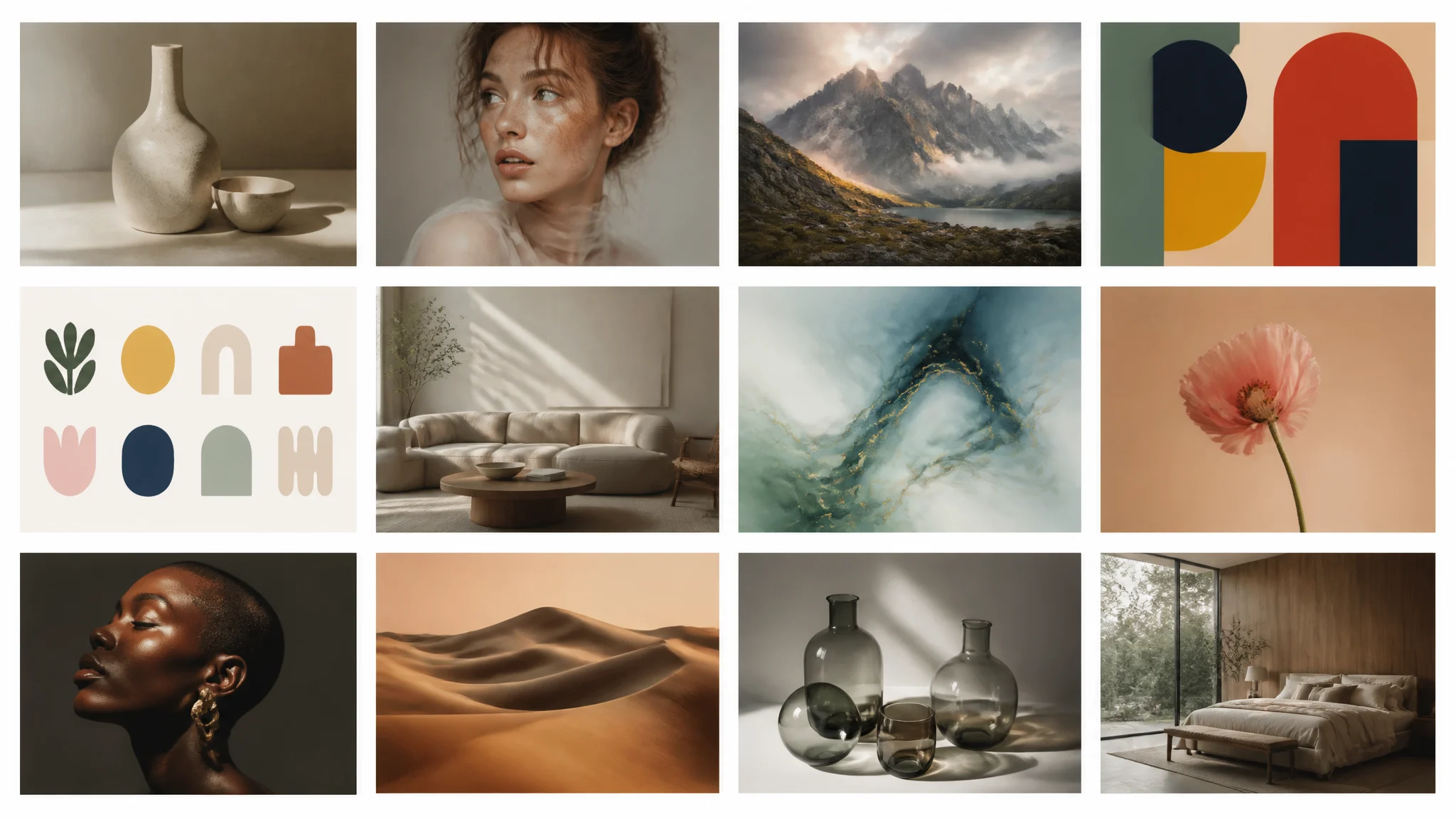
A useful image workflow usually begins in one of three ways.
Text to image starts from a written brief. It is useful when the subject, composition, and style can be described without preserving an existing identity or object.
Text plus reference image starts from a permitted source image and written transformation instructions. It is useful when identity, product geometry, layout, palette, or a source composition needs stronger continuity.
Iterative editing begins with an existing result and a focused correction. The best follow-ups preserve what worked and change one or two variables, such as the background, crop, lighting, or position of the subject.
Google’s documentation describes conversational image generation and editing. The exact controls available in FreeGPTBanana depend on its current model and provider configuration. The creative principle is portable: identify what must remain fixed, what may vary, and what the next image needs to accomplish.
A step-by-step Gemini image prompt workflow
1. Define the intended use
Start with the destination. A profile portrait, product listing, event poster, and social announcement need different crops and levels of detail. State the format and the response the image should create.
2. Make the subject unambiguous
Name the person, object, character, or environment. Add essential materials, wardrobe, role, expression, or product details. Avoid adding style words until the subject is clear.
3. Direct the composition
Set viewpoint, crop, subject placement, depth, negative space, and aspect ratio. Composition instructions often make the difference between an attractive image and one that can actually support copy or fit a channel.
4. Choose a coherent visual language
Use a small set of mutually supportive cues: soft window light, restrained editorial photography, warm neutral palette, tactile paper texture, or polished 3D rendering. Competing styles create unpredictable results.
5. Review and revise one decision at a time
Inspect identity, product accuracy, anatomy, text, edges, lighting, and crop. Preserve the successful parts, then issue a narrow correction. This makes each generation easier to compare.
Eight Gemini image prompt examples
Professional portraits
Professional profile portrait of a renewable-energy founder, calm confident expression, navy overshirt, chest-up crop at eye level, warm gray studio background, soft directional light from camera left, natural skin texture, editorial business photography for an About page.
Approachable conference speaker portrait in a modern venue lobby, subtle audience lights softly blurred behind the subject, open posture, charcoal jacket, balanced warm key light and cool background separation, vertical composition for a speaker bio.
Change the role, wardrobe, expression, and destination together. If likeness matters, use a permitted source photo and the reference-image workflow.
Product and ecommerce images
Clean ecommerce hero image of a matte-black coffee pouch with a small cream label, three-quarter view on a pale stone pedestal, controlled softbox highlights, realistic folded seal and material texture, wide composition with negative space on the right for product copy.
Lifestyle campaign photo of a lightweight travel backpack beside a train window, early morning mountain landscape outside, accurate straps and zipper placement, natural side light, restrained travel props, premium editorial photography for a seasonal launch.
For product work, write down the details that cannot change. A generated image should still be reviewed against the real product before publication.
Marketing and social visuals
Instagram launch visual for a sparkling citrus drink, hero can centered in a bright coral set, frozen splash arcs and small citrus slices supporting the focal point, crisp commercial highlights, square composition, clear upper-left text-safe area, no final rendered copy.
LinkedIn carousel cover about simplifying a complex workflow, one bold geometric path moving through four modular stations, cobalt and warm white palette, subtle dimensional icons, premium B2B editorial style, generous headline-safe space.
Ask for text-safe areas and hierarchy before asking the model to render important copy. Final words, dates, prices, and legal language should be typeset and proofread separately.
Characters and editorial concepts
Friendly banana-shaped robot mascot for a creative planning app, compact rounded proportions, yellow shell with graphite joints, expressive screen eyes, carrying a small stack of colorful cards, polished 3D illustration, isolated on a clean background for a sticker set.
Editorial visual explainer of a four-stage creative process, four connected modular scenes moving from rough note to finished campaign image, warm paper background, coral and blue accents, clear left-to-right hierarchy, generous spaces for final labels, landscape magazine style.
When creating a family of assets, repeat the palette, geometry, lighting, and scale. Change only the action, expression, or information in each variation.
Working with reference images
A reference image communicates information that would be difficult to reconstruct from text alone. It can help establish a face, product shape, color system, layout, or illustration style. It does not remove the need for clear instructions.
A useful reference prompt names both sides of the transformation:
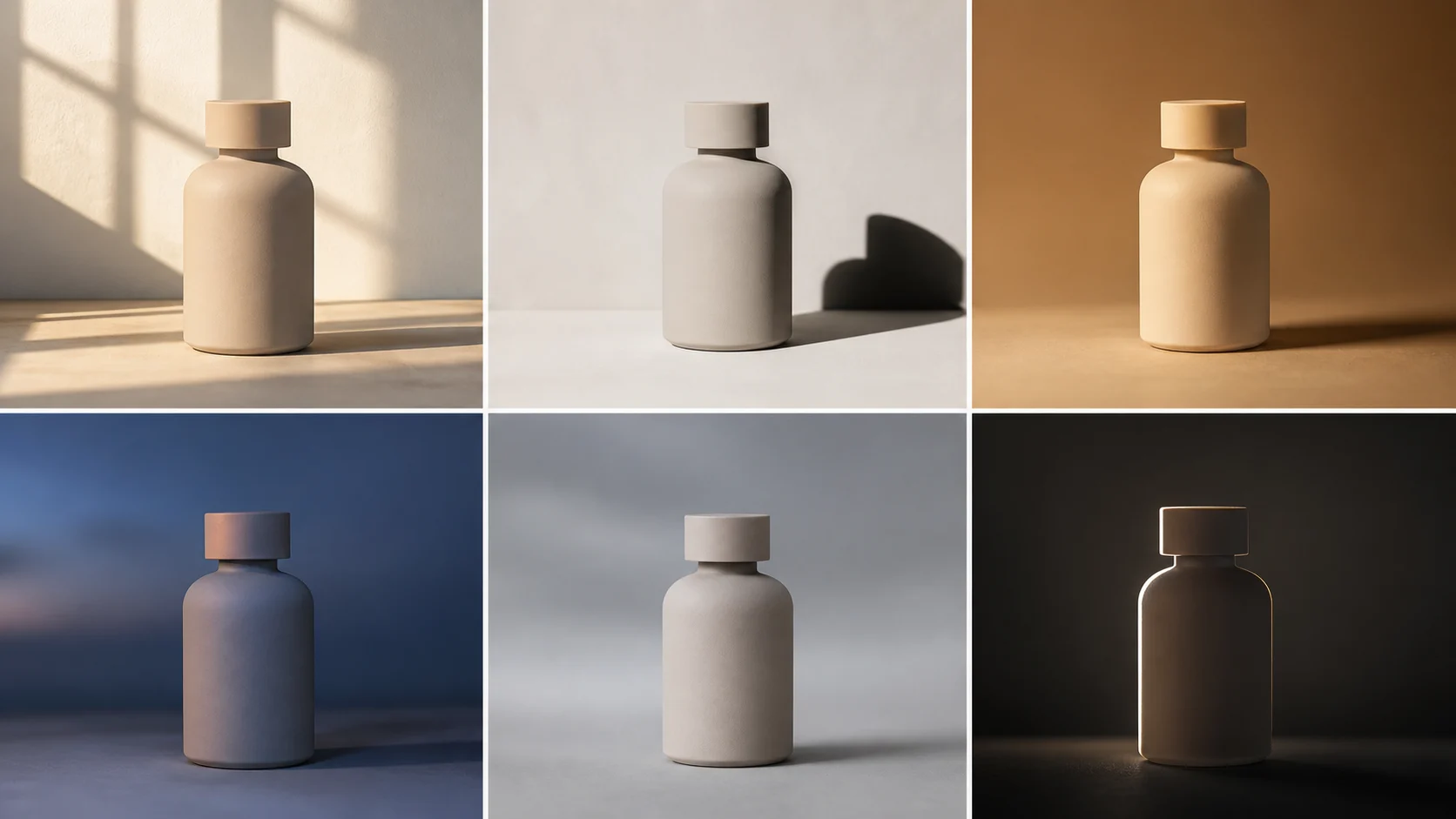
Preserve the bottle shape, cap, label placement, and matte material from the reference image. Replace the background with a clean pale-blue studio set, add a soft contact shadow and cool rim light, and compose a wide ecommerce hero with open space on the left. Do not invent new label text or accessories.
Only upload images you have permission to use. Review the result for identity, product, copyright, privacy, and brand concerns. Do not use generated visuals to deceive viewers about real people, products, places, or events.
Choosing settings without guessing
The model family is only one decision. Aspect ratio, resolution, references, and generation cost also affect the workflow.
Choose the aspect ratio from the destination: square for many profile and feed uses, vertical for portraits or Stories, and landscape for banners or editorial layouts. Higher resolution can help production output, but it does not repair a vague prompt. Reference images improve control only when the prompt explains what to preserve.
FreeGPTBanana uses an account-based workflow with starter credits. Credit use depends on the selected model, size, and settings. It does not promise no-signup, unlimited, or unrestricted generation.
Browse the prompt collection before starting from a blank page. When a structure is close to your goal, replace one decision at a time rather than adding a long list of unrelated adjectives.
A practical revision pattern
After the first result, write one sentence describing what worked and one sentence describing the highest-priority change.
For example:
- Preserve the product angle, label placement, and background color.
- Move the product slightly right, soften the shadow, and increase the empty space on the left.
This pattern prevents a revision from discarding the useful visual logic. It also makes it easier to understand whether the change came from composition, lighting, subject detail, or style.
Ready to test a structured prompt? Open Imagine with the Gemini image creator campaign context.
FAQ
Is Nano Banana the same as the Gemini image generator?
Google currently uses Nano Banana as the family name for Gemini’s native image generation capabilities and lists several models within that family. The exact names and model IDs should be checked against current official documentation.
Is FreeGPTBanana an official Gemini product?
No. FreeGPTBanana is an independent image creation workspace and does not claim affiliation with Google or Gemini.
Can I use a photo as a reference?
Yes, when the selected workflow supports references and you have permission to use the source image. State what must remain consistent and what should change.
Which Gemini image model should I choose?
Use the options actually available in the product you are using. Balance output requirements, speed, settings, and cost. Do not choose from an outdated article or assume every provider exposes every Google model.
Can I generate images for free?
New FreeGPTBanana accounts can start with included credits. Credits are consumed according to the selected model, size, and generation settings.
Put the workflow into practice
Create a focused first image
Start with included credits, keep the prompt and references together, and refine the result in your private Imagine workspace.
Open Imagine